

Android · version 1.5 · sideloaded
An expense tracker that cannot phone home.
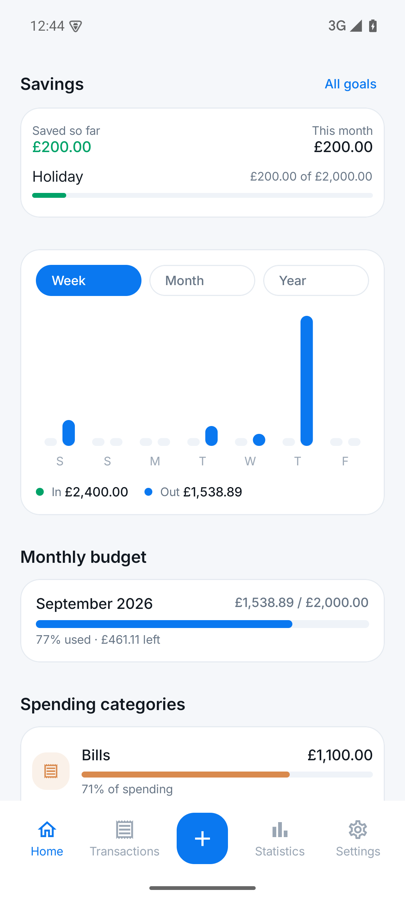
Expense101 records what you spend, what you owe, what is coming out next month and what you are putting aside. It holds no internet permission at all, so the figures cannot leave the phone — not to a server, not to a backup, not to anyone.
- Download
- 3.2 MB
- Needs
- Android 8+
- Accounts
- None
- Trackers
- 0
The whole privacy policy
Two permissions. Neither of them can send anything anywhere.
Most money apps ask you to trust a policy. This one is easier to check: an Android app can only reach the network if it declares the internet permission, and Expense101 does not declare it. Everything below is what the installed app actually asks for.
Asks for
-
Notifications
Payment reminders and budget warnings Granted by you -
Start after restart
So reminders survive a reboot Automatic
Does not ask for
- InternetNot declared
- LocationNot declared
- ContactsNot declared
- Files and photosNot declared
- Cloud backupTurned off
Check it yourself before installing: aapt dump permissions Expense101.apk lists
every permission in the file. Receipt photos live in the app's own private folder, never in
your gallery. Google's automatic cloud backup is switched off, so the database is not copied
off the phone by Android either.
What it does
Built around the money that has not happened yet.
Recording yesterday's coffee is the easy part. The awkward questions are what is still owed, what leaves the account next week, and whether anything is left for the thing you are saving for. Each of those is its own screen.
Loans & debts
What you owe, and when the next payment lands
A bank loan with a monthly payment, or £600 you owe your mum. Record a payment and it comes off the balance and shows up in your spending at the same time.
- Monthly plan with a payment day, or a single pay-back date
- A reminder on the day, or 1, 3 or 7 days before
- Progress and months remaining at the current payment

Scheduled expenses
Rent, insurance, the renewal you always forget
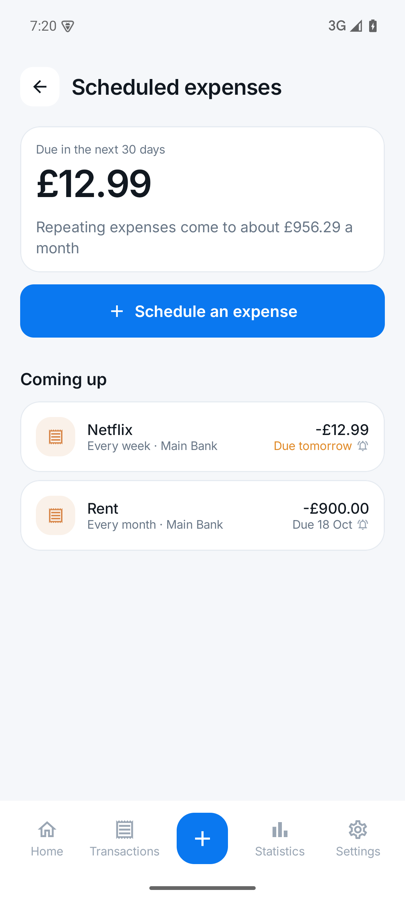
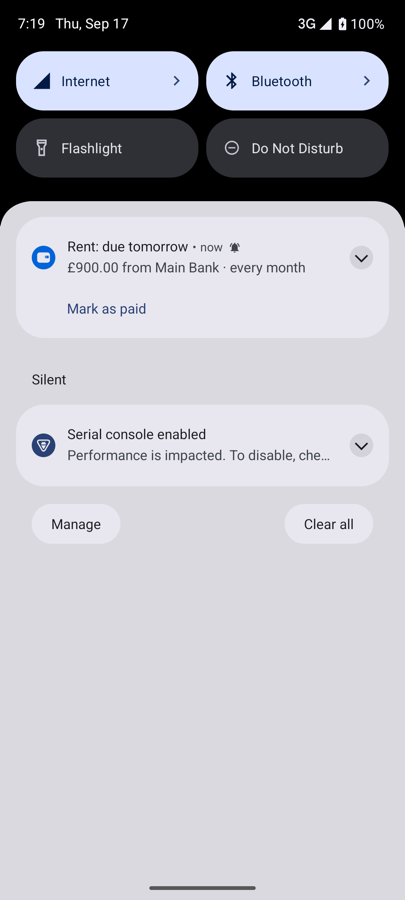
Plan a payment once and it keeps coming back — weekly, monthly or yearly. The reminder carries a Mark as paid button, so a bill can be recorded from the notification without opening the app.
- Nothing is recorded until you say it was paid
- Skip one without breaking the schedule
- Overdue items sort themselves to the top
Savings
Money set aside is moved, not spent
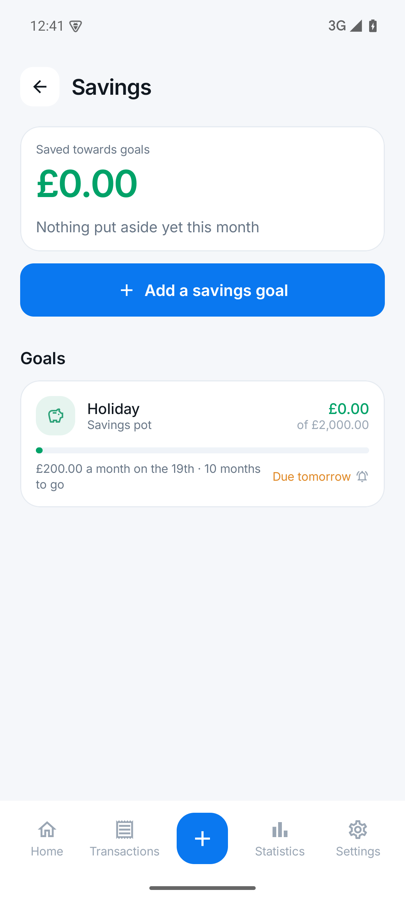
Put £200 towards a holiday and your total balance does not budge: it moves between your own accounts. Savings never count as spending, so they cannot quietly eat a budget or distort a chart.
- A target, a deadline, and what it needs per month to get there
- A nudge on the day you meant to put money aside
- Take money back out whenever real life happens
Where it went
This month against last, and the year so far
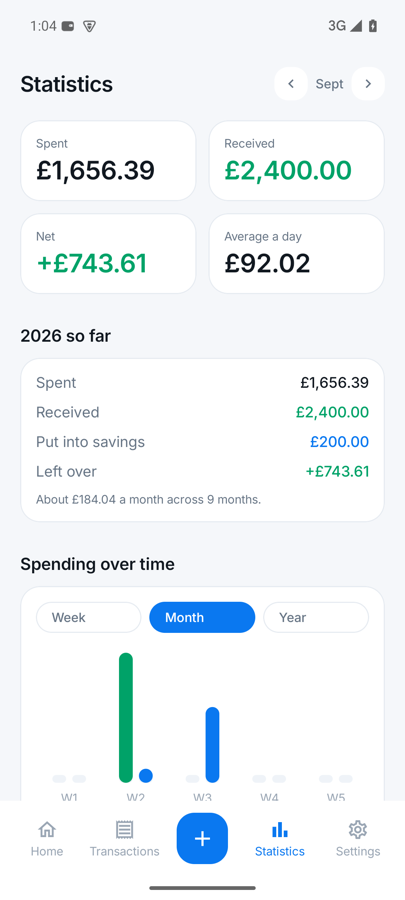
Spent, received, put into savings and what is left over, with every category compared against the month before. Budgets warn you at 80% and again when they are gone.
- Search your whole history, not just the month on screen
- Spending by category, with the change on last month
- Export to a spreadsheet whenever you want the raw rows
One file with every transaction and receipt photo. Restoring it on a new phone brings everything back, currency setting included.
Optional fingerprint, face or PIN on opening — the phone's own unlock, so there is no new password anywhere.
Photograph a receipt and it stays attached to the transaction, in the app's private storage.
Bank, cash, credit card, savings. Delete one and its transactions move somewhere sensible instead of vanishing.
Every ISO currency, searchable. Changing it relabels the figures and converts nothing behind your back.
Follows the phone, and was drawn for both rather than inverted from one.
How the reminders work
Notifications from a phone with no connection
Every reminder is an alarm set on the phone itself. Nothing is scheduled on a server, nothing is pushed to the device, and they keep working in flight mode. They come back by themselves after a restart, and a reminder for a payment you have already made moves to the next month instead of nagging you.
- Choose the hour they arrive: 08:00, 09:00, 12:00, 18:00 or 20:00
- Tapping one opens the screen it is about
- Budget warnings arrive once per budget, per month
Install
It is a file, not a shop listing.
Expense101 is not on Google Play. You get Expense101.apk and put it on your phone yourself — which is also why nothing about you needs an account.
-
Get the file onto your phone
Tap the button above on the phone itself, or copy Expense101.apk across by cable. It is about 3.2 MB.
-
Open it and allow this one install
Android asks whether the app doing the installing — your files app or browser — may install apps. Allow it for that app, then confirm.
-
Open Expense101 and add your accounts
Set the currency, add the accounts you actually use, and enter your first transaction.
-
Save a backup somewhere safe
Settings, then Backup. Nothing is backed up for you, by design — so this one file is your safety net.
↻ Updating later is the same file, opened again. Your data stays where it is, and the app carries it forward.
Releases